Alamoda Outfit Creator
Create Outfits Your Way With Alamoda’s Powerful Outfit Editor
Start with an easy layout, then arrange every piece, title, shape, and detail until the outfit board feels completely yours.
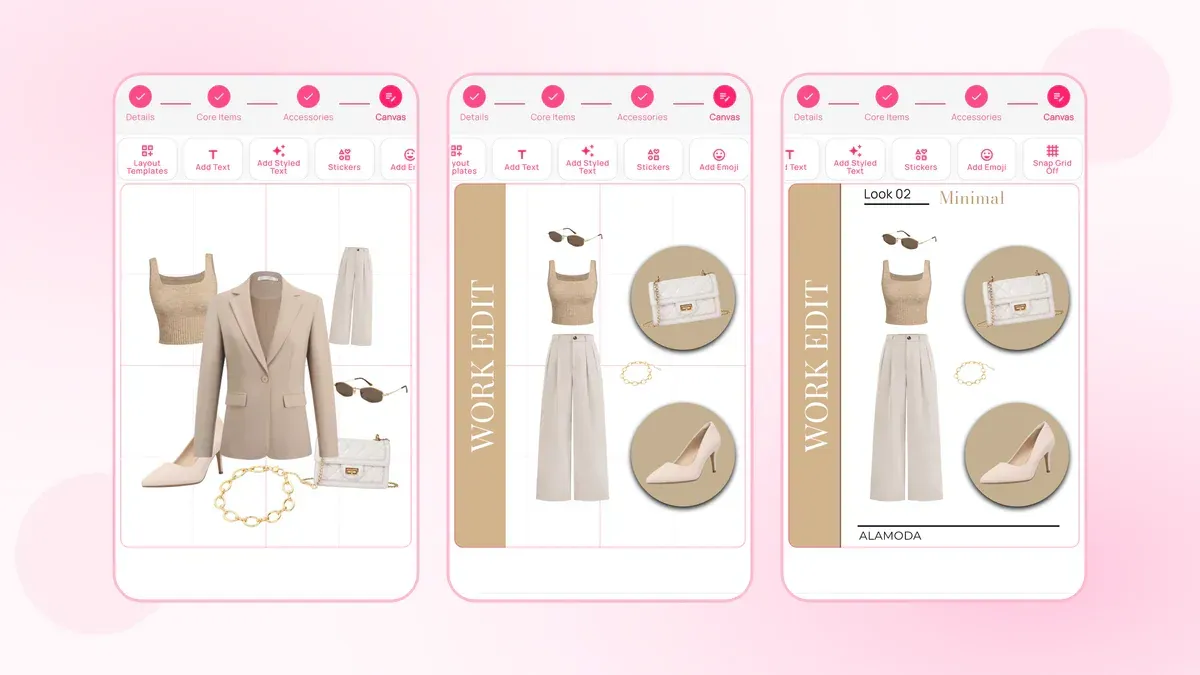
Alamoda combines a digital wardrobe and visual outfit editor in one app. Choose clothing already stored in your closet, build a polished 4:5 board, and save the result without exporting pieces to a separate design tool.
The idea
What Is an Outfit Creator App?
An outfit creator app helps you combine clothing and accessories visually before you wear them. Some apps stop at a simple collage. Alamoda connects the visual board to the rest of your wardrobe.
The pieces come from clothing you have already added to your Alamoda digital wardrobe, and the result is saved as an outfit rather than a disconnected image. That means a finished look can stay part of your planning routine instead of disappearing into the camera roll.
The editor is designed around two goals that do not always appear together: make the first layout easy, then give you enough control to make it personal.
Easy to begin
A Guided Flow Keeps Outfit Creation Simple
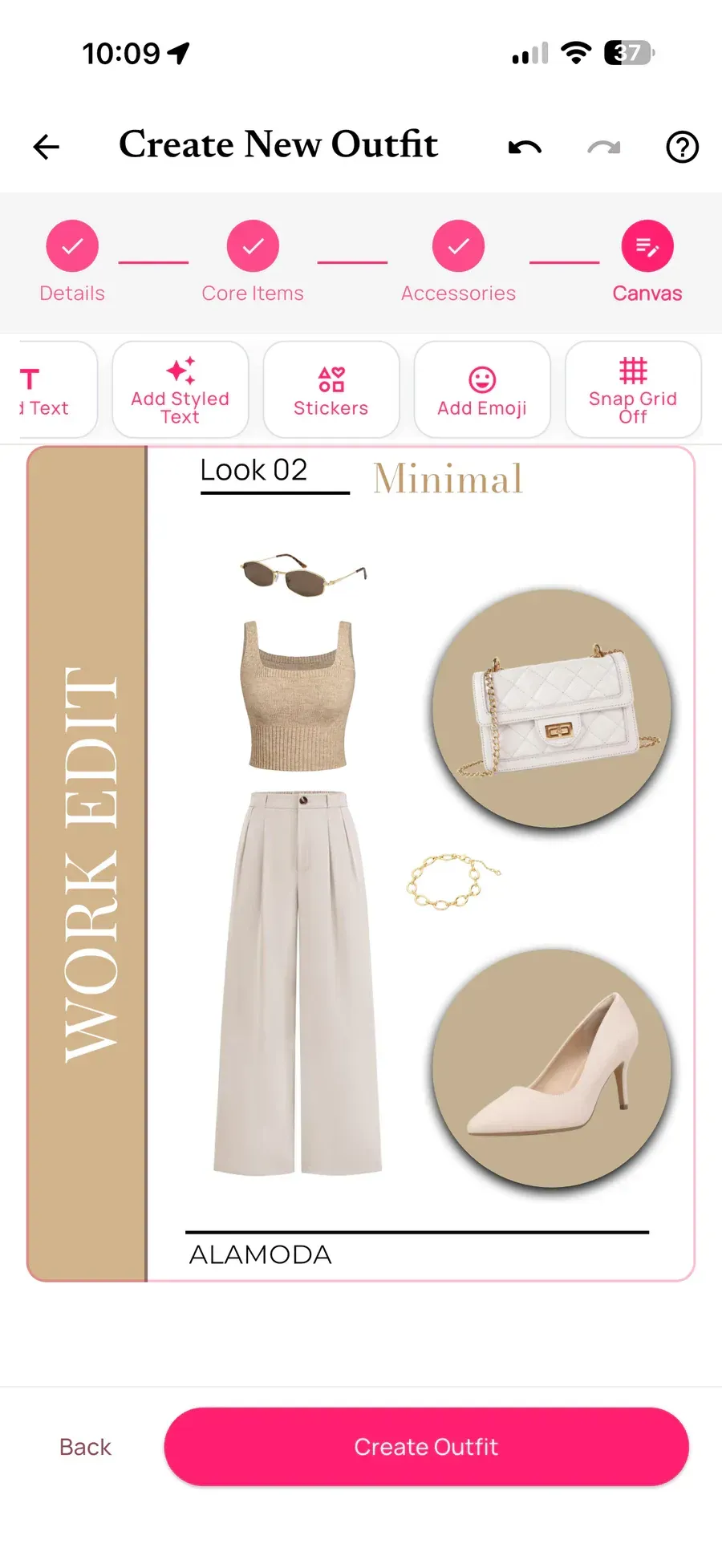
Powerful editors can become overwhelming when every control appears at once. Alamoda separates outfit creation into four clear stages:
- Details: Name the outfit and choose its relevant information and visibility.
- Core Items: Select the main garments, such as a top and bottom or a dress.
- Accessories: Add shoes, bags, jewelry, outerwear, and finishing pieces.
- Canvas: Arrange and style the complete outfit board.
You make the important clothing decisions first, then enter the creative canvas with the pieces already collected. A compact toolbar keeps layouts, text, stickers, emoji, and guides close, while undo and redo remain visible at the top.
One-tap layouts
Start Fast Without Giving Up Creative Control
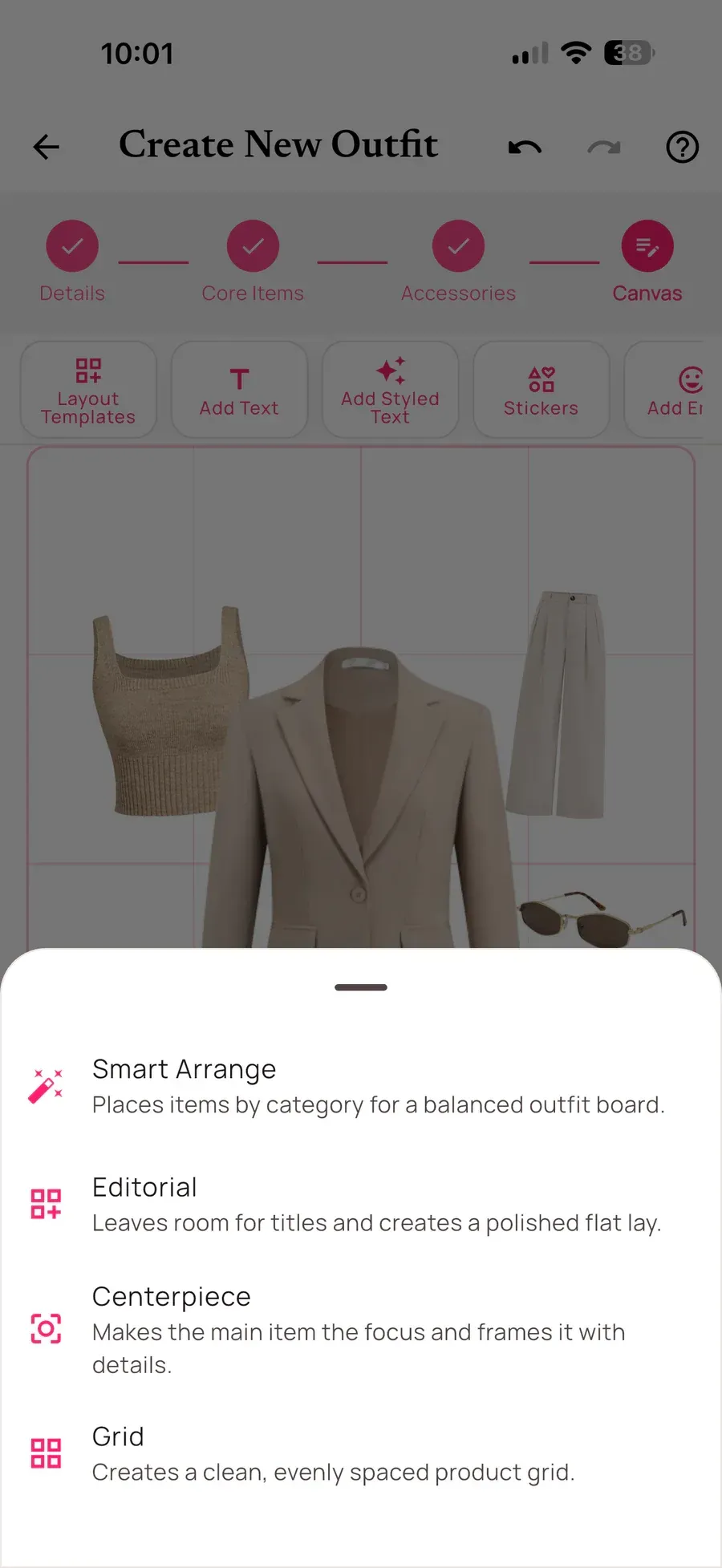
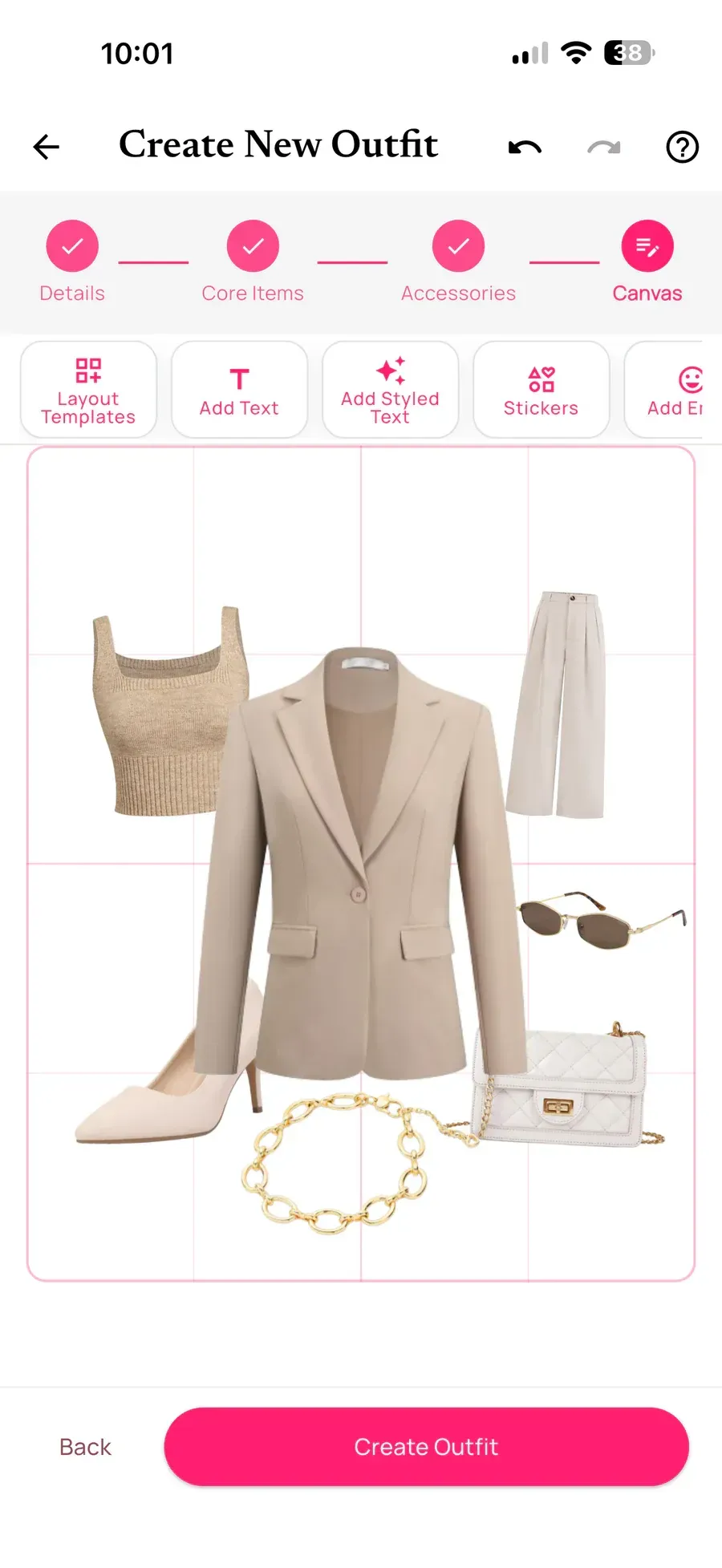
A blank canvas offers freedom, but it can slow down the first step. Alamoda includes four layouts that create an immediate starting composition:
- Smart Arrange places pieces by clothing category for a balanced outfit board.
- Editorial creates a polished flat lay while reserving room for titles and design details.
- Centerpiece makes the main garment the focal point and frames it with supporting pieces.
- Grid creates a clean, evenly spaced product-style arrangement.
Apply one, review the result, and keep adjusting anything that does not feel right. The layout is a starting point, not a locked design.
Freeform editing
Turn the Starting Layout Into Your Own Outfit Board
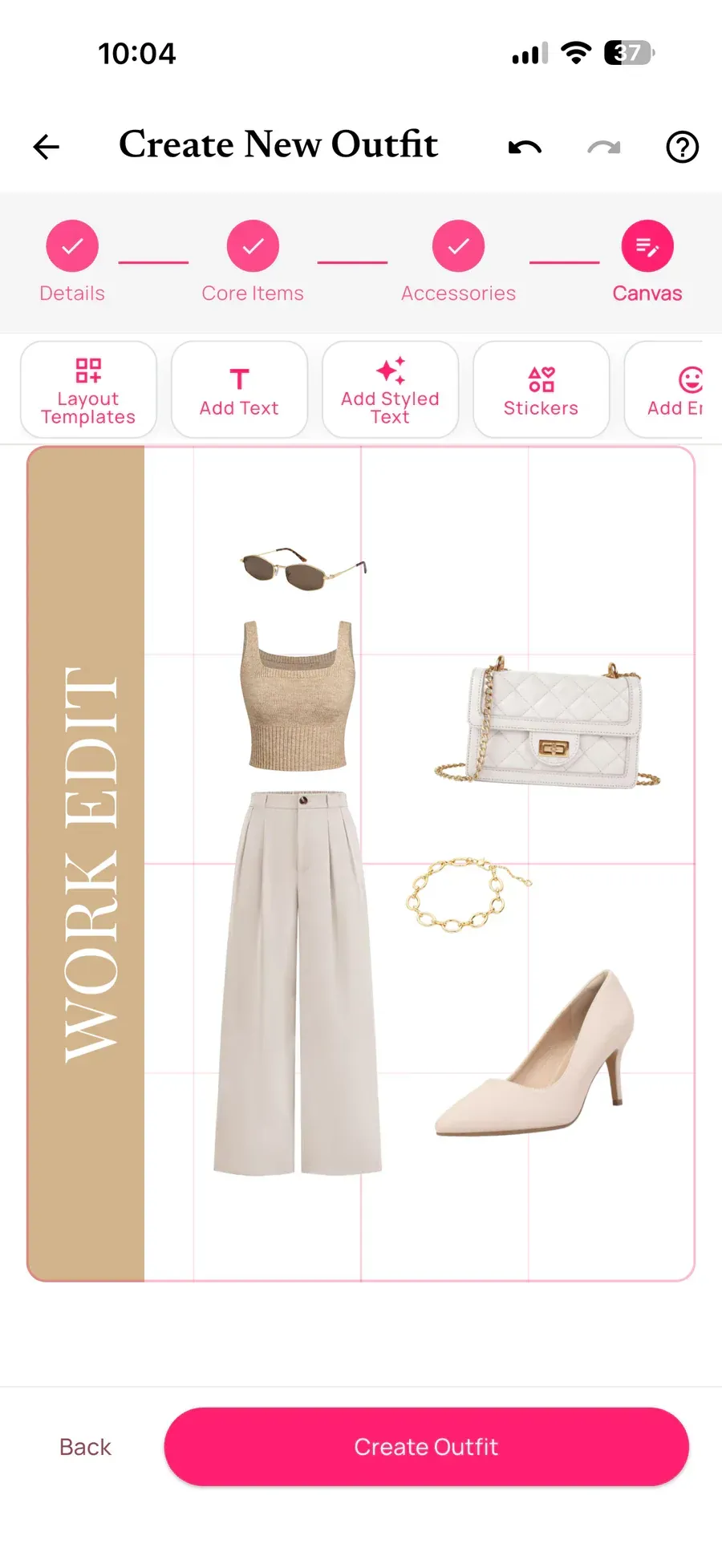
After applying a template, every piece remains editable.
- Drag an item anywhere on the canvas
- Pinch to resize it
- Rotate it with a gesture or rotation control
- Bring it forward or send it behind another object
- Apply a 90-degree rotation or reset its angle
- Use guides to line up edges and centers
- Undo or redo changes during the editing session
A blazer can become the hero piece, accessories can be grouped as supporting details, and open space can be used intentionally. The optional guide overlay helps when you want a cleaner composition, while object snapping helps align the canvas and nearby elements.
Creative tools
Add Typography, Shapes, Stickers, Emoji, and Effects
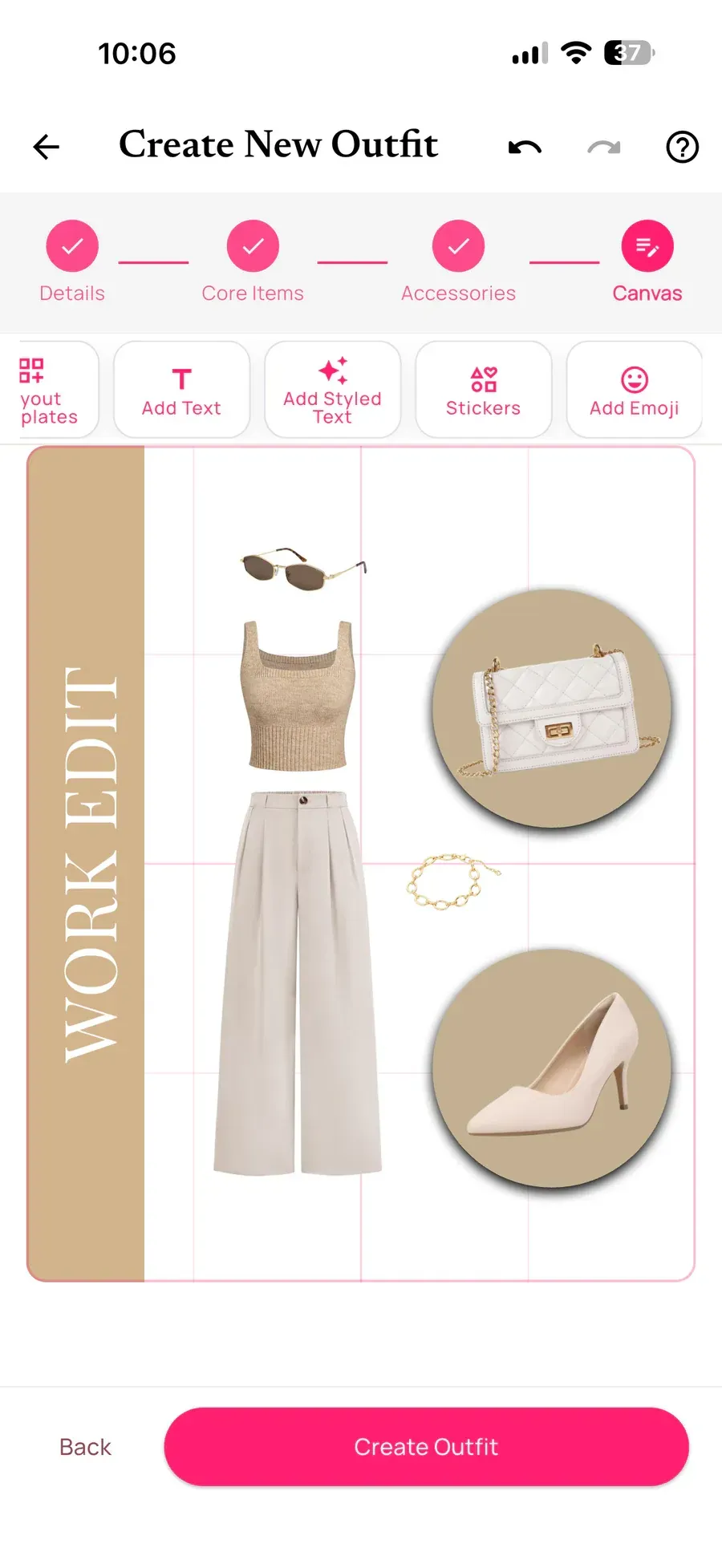
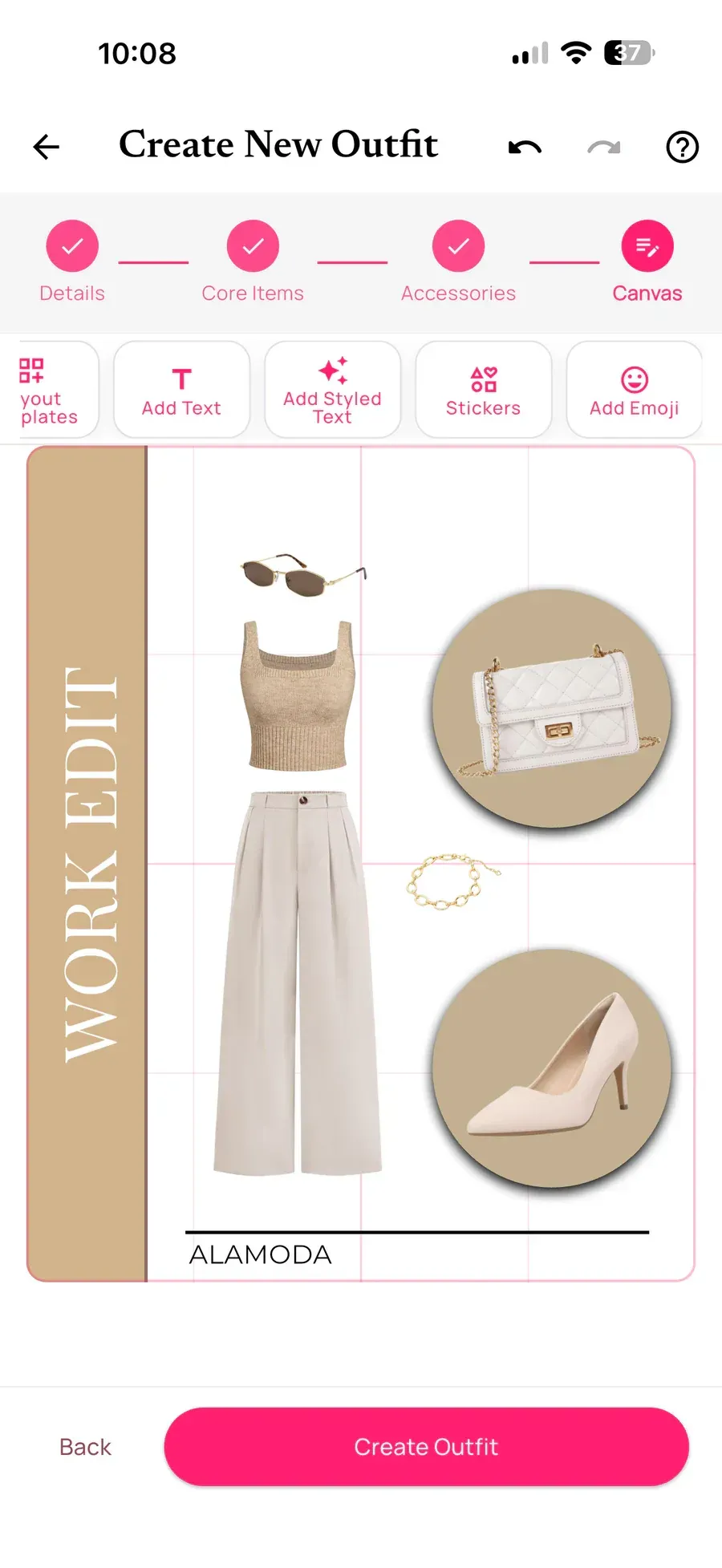
An outfit board can be useful and still feel expressive. Alamoda supports custom text with controls for font, size, color, bold, italic, outline, glow, background, and shadow. Five styled-text presets—Minimal, Chic, Casual, Night Out, and Vacation—offer quick starting points.
The bundled decoration library includes shapes, frames, highlights, arrows, lines, editorial accents, hearts, and travel-related motifs. Colors can be adjusted on supported stickers, and stretchable shapes can become backgrounds or framing elements.
Supported canvas objects can also use shadow, outline, opacity, flip, and lock effects. The toolbar becomes contextual after an object is selected, keeping relevant controls close without filling the screen permanently.
Connected to your wardrobe
The Finished Result Is More Than a Screenshot
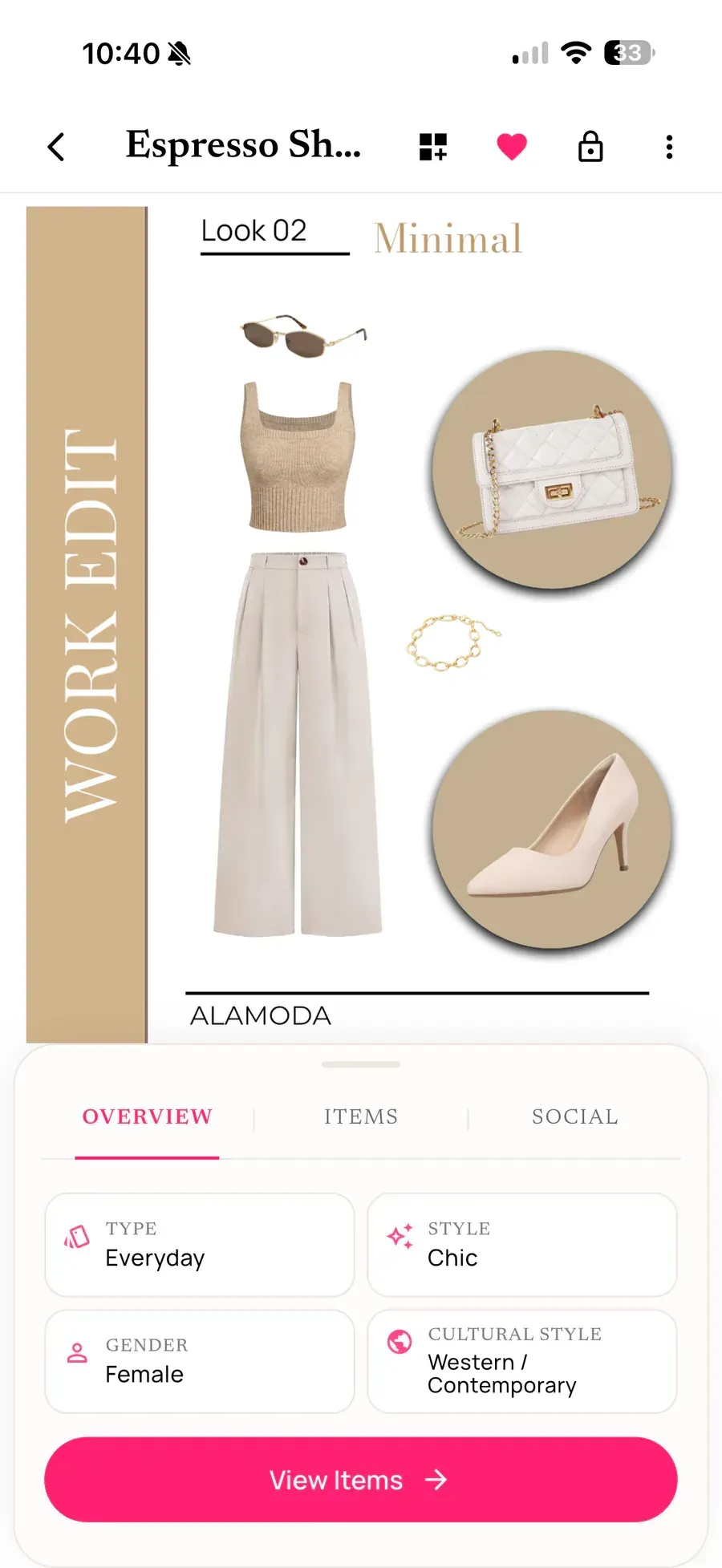
Alamoda saves the composition as a polished 4:5 outfit image while retaining the editable canvas information for the saved outfit. The final result becomes a complete outfit page with its style details and the wardrobe pieces behind the look.
Keep the outfit private for personal planning or choose public visibility. Once a public outfit and its canvas finish uploading, it can become eligible for Alamoda’s clean Explore feed. Other users can discover the look, visit the creator’s profile, like, comment, save, or share it, and inspect its individual pieces. When the creator has attached a product or source link, viewers can open that link in their browser.
Alamoda begins with a wardrobe, saves the result as an outfit, and connects it to planning and discovery features. This creates a shorter path from “I own these clothes” to “this is how I want to wear them.”
Better boards
Six Tips for Creating a Polished Outfit Board
Begin With Clear Clothing Images
Review background removal and garment edges before building the outfit. Better source images create a more consistent board.
Choose the Layout for the Goal
Use Smart Arrange for speed, Editorial for text, Centerpiece for one hero item, or Grid for even spacing.
Establish One Focal Point
Make the leading garment slightly larger or place it in a strong area, then use accessories as supporting details.
Refine With Guides
Arrange freely first, then turn on guides when you are ready to clean up centers, edges, and spacing.
Use Text and Effects With Purpose
Choose a small palette and clear hierarchy. Add shapes or shadows only when they clarify the composition.
Save the Outfit, Not Just the Image
Give the outfit a useful name and details so you can find, plan, edit, or share it later.
Common questions
Questions About Alamoda’s Outfit Creator
Can I create outfits using clothes from my own closet?
Yes. Add clothing to your Alamoda digital wardrobe, then choose core garments and accessories during the guided creation flow. Those wardrobe pieces become editable objects on the canvas.
Does Smart Arrange use AI?
No. Smart Arrange uses deterministic layout rules based on the selected clothing categories. It provides a fast and consistent starting composition that you can freely edit.
Can I move, resize, and rotate every item?
Wardrobe pieces and supported canvas elements can be moved, resized, rotated, and layered. Objects remain constrained to the outfit canvas.
Can I add text, stickers, shapes, and emoji?
Yes. The editor supports custom and preset typography, emoji, and a bundled sticker library containing editorial accents, frames, highlights, arrows, shapes, and other decorative options.
Can I share an outfit I create?
You can keep an outfit private or select public visibility. After its canvas uploads successfully, a public outfit can become eligible for Explore. Public saved outfits can also be shared by link from the outfit details screen.
Is Alamoda available on iPhone and Android?
Yes. Alamoda is available on both iPhone and Android.
Create your next look
Easy to Start. Powerful Enough to Make It Yours.
Build an outfit from the clothes already in your wardrobe, apply a layout in one tap, and refine every detail on the canvas.
Download Alamoda on iPhone or Android